
Products
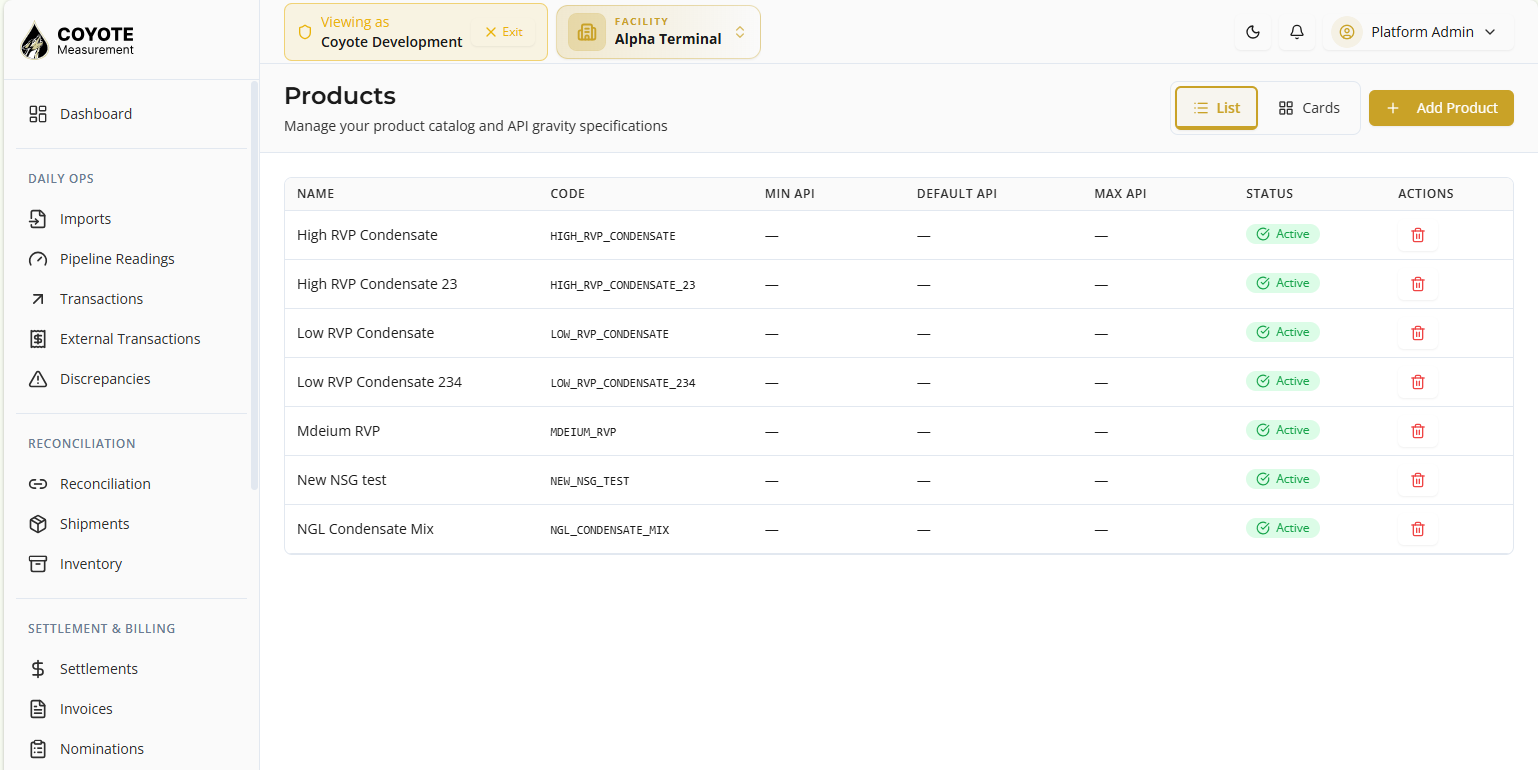
Products represents your master directory of registered commodities and physical goods. Every transaction, pipeline run, or allocation ticket requires a resolved product profile to accurately map commercial specifications, system routing codes, and API gravity thresholds.
Open Admin → Products in the app (/products).
Where to go in the app
Step 1 — Navigate to the products page
- In the primary sidebar, navigate to the Admin section.
- Click Products.
- The products list appears displaying all master product entities, their classification types, and current system availability status.
Columns
| Column | Description |
|---|---|
| Name | The name of the commodity (e.g., High RVP Condensate, NGL Condensate Mix). |
| Code | The unique system identifier used for backend transaction mapping and API routing. |
| Min API | The minimum allowable API gravity threshold configured for the product. |
| Default API | The baseline API gravity value assigned if no specific measurement is captured. |
| Max API | The maximum allowable API gravity threshold configured for the product. |
| Status | The current operational state of the item (e.g., Active). |
| Actions | Contains management utilities, such as a delete option to remove the product from the catalog. |
Filters & Views
| Control | Use for |
|---|---|
| List | Switches the interface to a structured, tabular data grid for detailed item auditing. |
| Cards | Toggles the interface to a grid layout of visual summary blocks for each product. |
| Add Product | Opens the creation wizard to register a new commodity and set its gravity specifications. |
Step 2 — Create a new product
- Click Add Product in the top right.
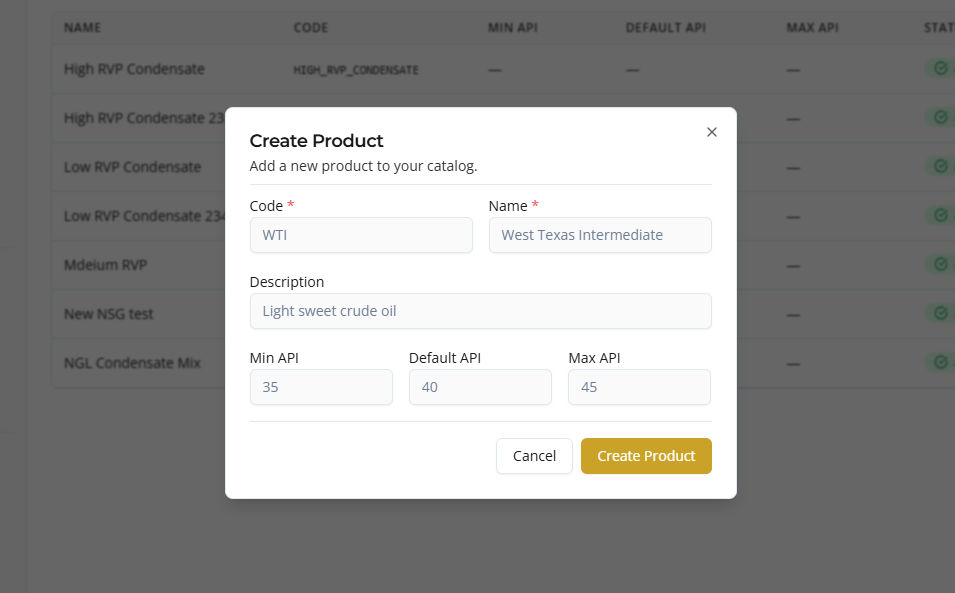
- The Create Product dialog box opens overlaying the screen.
- Enter the unique system identifier in the Code field (e.g., WTI).
- Enter the commodity name in the Name field (e.g., West Texas Intermediate).
- Enter a brief description in the Description field (e.g., Light sweet crude oil).
- Enter the baseline quality metrics in the Min API, Default API, and Max API gravity fields.
- Review the details and click the Create Product button at the bottom to save successfully.
Step 3 — Delete the product
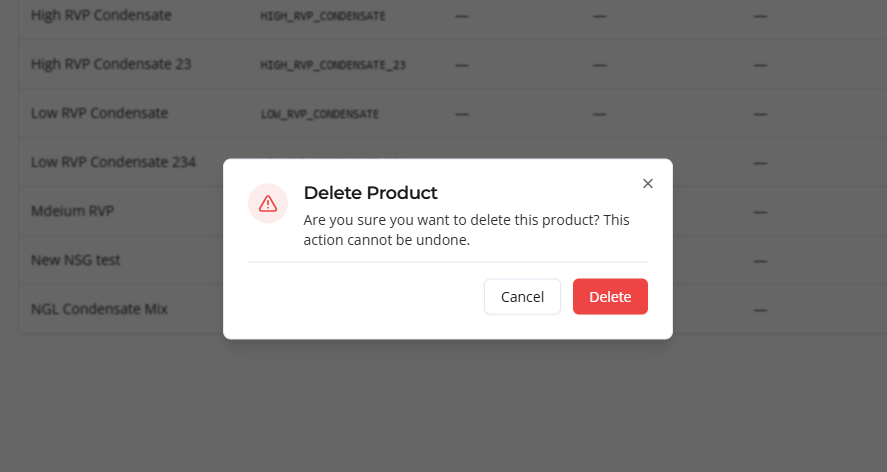
- From the products list, Click the trash Icon.
- Confirmation popup will open, click delete button.
Related topics
- Overview — facilities and partners
- Facilities — step-by-step facilities
- Partners — step-by-step partners
- Drivers — step-by-step drivers