

Overview
Imports bring terminal data into Coyote Measurement so you can validate loads, reconcile volumes, run reports, and settle accounts — without copying data through Excel.
Coyote supports unified import: upload multiple files in one run (bay TransLog files, pipeline daily reports, and producer LACT spreadsheets). The system detects file types automatically, groups them into an import session for a production day, and walks you through review before data goes live.
What gets imported
| Category | Example file types | What Coyote creates |
|---|---|---|
| Bay / Carrier | Smith Microload TransLog (.txt), Emerson ROC CSV, ABB Totalflow, OMNI Flow, Honeywell | Staging transactions (truck loads) per bay |
| Pipeline reading | Deep Fork PDF, VTScada CSV, OnPing CSV | Pipeline reading for the production day |
| Producer LACT | Producer LACT Excel (.xlsx) | External tickets with LACT allocation review |
Import session
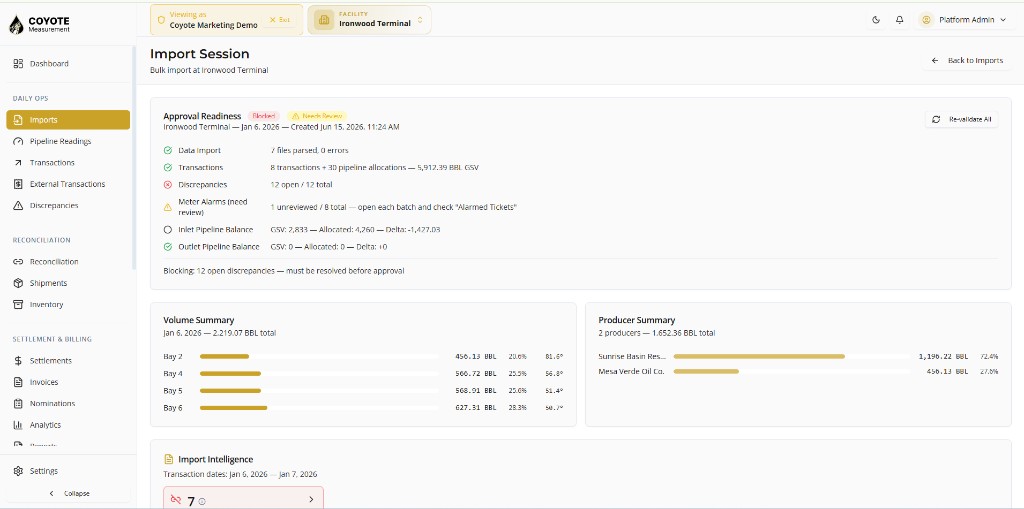
An import session is one import run for a facility and production day.
- A session can contain multiple files (for example Bay 1, Bay 2, and a pipeline PDF for the same day).
- Multi-day uploads create a group of sessions linked together; use the day navigator on the session page to move between days.
- Each file becomes an import batch inside the session.
Production day
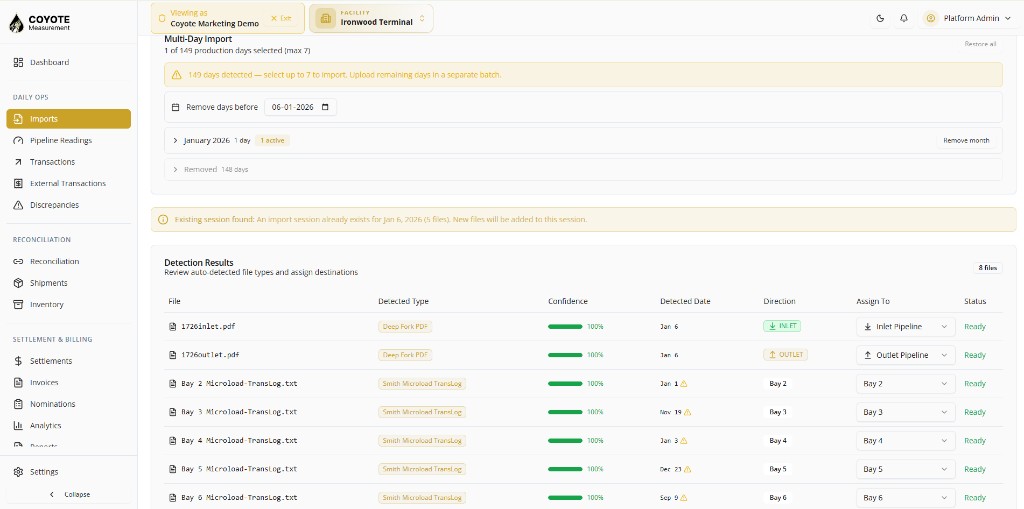
Coyote uses the facility’s operational day (typically 7 AM to 7 AM in the facility timezone) to assign report day and group data.
When you upload files, Coyote tries to detect the production day from file content. You confirm or override it before processing.
Import status flow
Each session and batch moves through statuses as files are parsed, validated, and approved:
Uploaded → Parsed → Validating → Validated / Needs Review → Approved or Rejected| Status | Meaning |
|---|---|
| Uploaded | Files received; processing started |
| Parsed | File parsed into staging rows |
| Validating / Validated | Rules and mappings checked |
| Needs Review | Warnings or issues require attention before approve |
| Approved | Data promoted to live transactions and readings |
| Rejected | Import discarded; re-upload corrected files |
| Failed | Parse or system error; see batch detail for messages |
Permissions
| Action | Permission |
|---|---|
| View import sessions and batches | facility:imports:list |
| Upload and edit import rows | facility:imports:upload |
| Approve or reject a session | facility:imports:approve |
Your role must also include access to the facility shown in the app header.
Where to go in the app
- Select your organization and facility in the top bar.
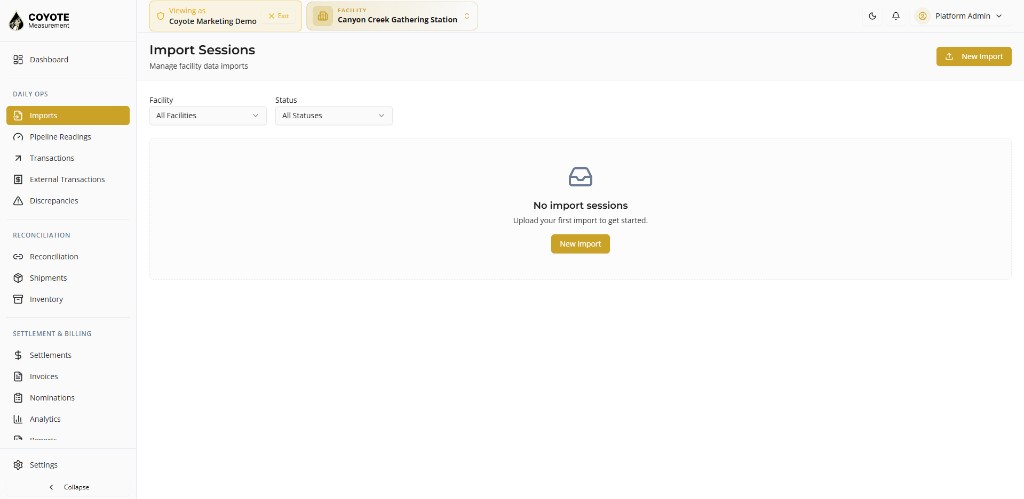
- Open Imports in the sidebar.
- Use New Import to upload files, or open an existing Import Session to review and approve.
End-to-end flow
flowchart TD A[Select facility] --> B[Upload files] B --> C[Auto-detect type, bay, and date] C --> D[Confirm mappings and production day] D --> E[Process import session] E --> F[Review and validate rows] F --> G{Blocking issues?} G -->|Yes| H[Fix rows, mappings, cross-bay, LACT] H --> F G -->|No| I[Approve session] I --> J[Live transactions and readings] J --> K[Reports, ledger, and reconciliation]Related topics
- Uploading Import Files — step-by-step upload wizard
- Reviewing & Validating — fix issues and approve
- Troubleshooting Imports — common errors and fixes